Game Booster App Not Visible During a Game
 Please Note: The information on this page is for Australian products only. Models, sequences, error codes or settings will vary depending on location and/or where the product had been purchased. To be redirected to your local support page please click here.
The Game Booster may not be visible for several reasons. Unfortunately, not every device supports Game Booster. Please first check your device to make sure it offers the Game Booster function.
Depending on the style of the navigation bar, the Game Booster’s “Main screen” or location of the “Settings” menu, may vary. Please refer to our page on "Using the Game Booster App" and refer to the 'Opening the Game Booster App' tab for more information about the different navigation bars.
Please keep in mind that the Game Booster app can only be used with game apps. If you are trying to utilise Game Booster with any other type of app, it will not work.
After ensuring that your device supports Game Booster, check the appropriate permissions are enabled for the app to 'Appear on top'. To do this, please follow the steps below:
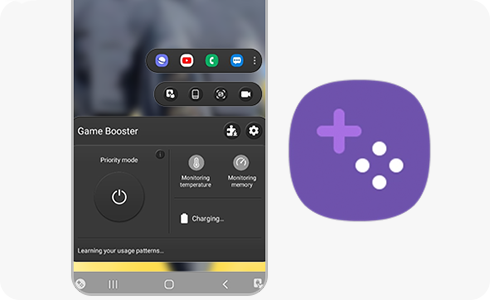
Enabling Game Booster to Show on Top
Step 1
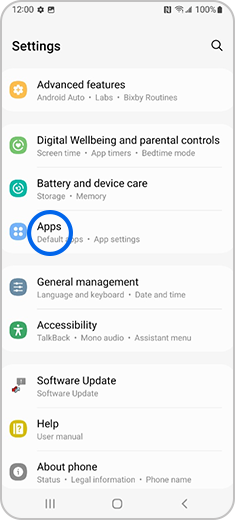
Enter Settings and click the Apps menu.
Step 2
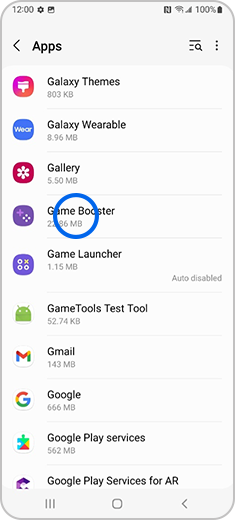
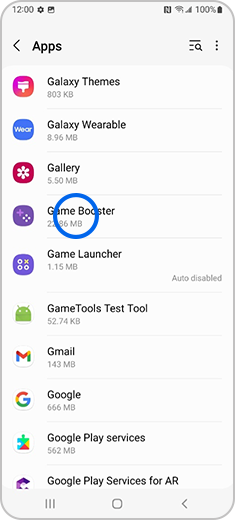
Select Game Booster.
Note: If Game Booster does not appear on the list - go to “Apps” > “Filter and sort” > Turn on “Show system apps”.
Step 3
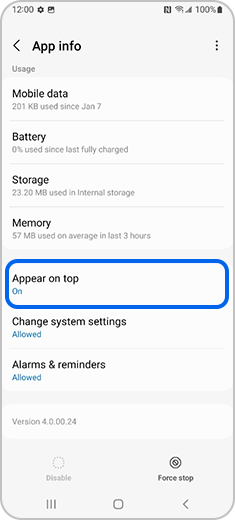
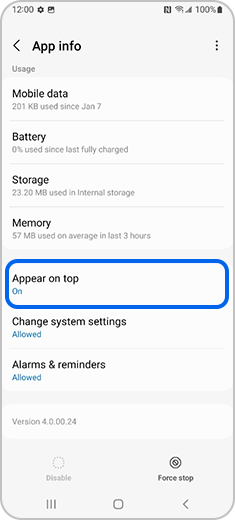
Select the Appear on top function and set it to On.
For further assistance, please contact our Chat Support. To find your Samsung product's User Manual, head to Manuals & Downloads.
Thank you for your feedback!
Please answer all questions.
Contact Info
Contact us
WhatsApp
![]()
![]()

