Using the Game Booster App
 Please Note: The information on this page is for Australian products only. Models, sequences, error codes or settings will vary depending on location and/or where the product had been purchased. To be redirected to your local support page please click here.
Game Booster is an app that helps users enjoy their games by increasing device performance as they play, which thanks to its features, offers an improved gaming experience for everyone.
Game Booster provides useful tools that help you enjoy games smoothly:
- Optimises the game to balance battery usage, performance, and temperature by learning the user's game play patterns.
- Provides a variety of locking functions to let you immerse yourself in the game.
The Game Booster app starts running automatically when you play a game.
The way to enter the main Game Booster screen depends on the style of the navigation bar and the block navigation gestures used to open Game Booster.
Opening Game Booster with Navigation Bar
Click the Game Booster icon at the bottom left of the navigation bar.
Opening Game Booster without Navigation Bar (Swipe Gestures)
Navigation Gestures Off
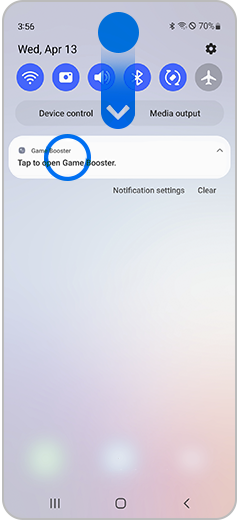
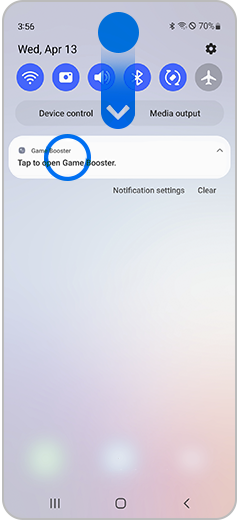
Swipe down from the top to open the notification panel, and then click the Game Booster notification in the notification panel.
Navigation Gestures On
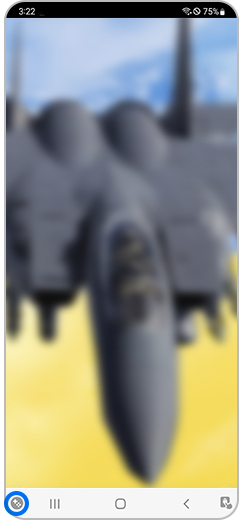
Click the Game Booster icon that appears in the one swipe gesture at the bottom left of the screen.
You can enter the Game Booster settings by selecting the button on the top right corner of the main Game Booster screen. Here are a few things you can adjust in the settings:
Shortcuts
Touch protection timeout
Screenshot resolution
Screenshot format
Game Optimisation
You are also able to enable or disable the 'Block during game' function in the Game Booster settings. This allows you to have no interruptions during your gaming experience, as you can choose to block notifications, navigation gestures, auto brightness, Bixby, and edge panel.


For further assistance, please contact our Chat Support. To find your Samsung product's User Manual, head to Manuals & Downloads.
Thank you for your feedback!
Please answer all questions.
Contact Info
Contact us
WhatsApp
![]()
![]()

