Game Bar on your Samsung TV
Key features of the Game Bar
The Game Bar helps you manage gaming settings and performance information in one place.
- New for 2026, it introduces advanced AI-powered features such as AI Gaming Optimizer and AI Virtual Aim Point, which automatically analyze gameplay and enhance picture, motion, and aiming visibility.
- Control supported Game Bar features using voice commands through Bixby, for example, “Hi Bixby, turn on AI Gaming Optimizer.”
- Open the Game Bar by pressing and holding the Play/Pause button on the Samsung remote when Game Mode is set to On or Auto.
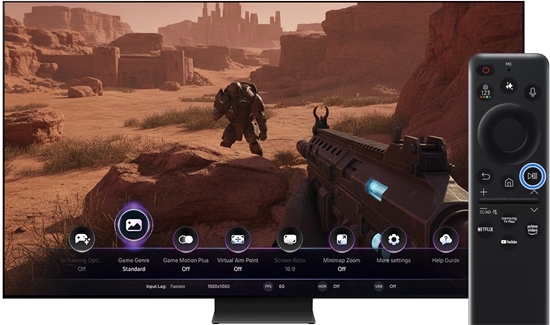
- View real-time performance details, including input lag, resolution, frame rate (FPS), HDR status, and VRR values.
- Access commonly used gaming tools and settings quickly without leaving the game screen.
Key features include:
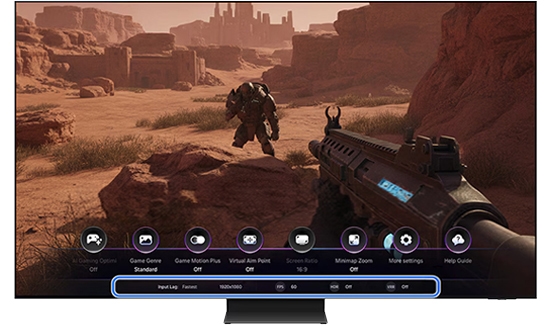
AI Gaming Optimizer
AI Gaming Optimizer is a new feature that centrally controls AI Auto Game Mode, AI Virtual Aim Point, and Game Motion Plus. It automatically applies optimal picture and motion settings for improved responsiveness and visibility.
Game Genre
Adjust picture and sound settings by game type or select Auto to enable AI Auto Game Mode. This feature identifies the game title and automatically applies optimal audio-visual settings.
- AI Auto Game Mode is supported on game consoles and PCs only.
- When AI Gaming Optimizer is set to On, the setting appears as Auto and the icon appears dimmed.
- Auto is not displayed in the Game Genre options if the device does not support the AI Auto Game Mode.
Game Motion Plus
Enhance motion smoothness and reduce input lag to optimize fast-moving games, such as role-playing and adventure titles.
- Game Motion Plus is supported on game consoles only. The icon appears dimmed when the feature is not supported.
- When AI Gaming Optimizer is turned on in game consoles, the Game Motion Plus icon appears dimmed.
- If VRR is turned on, Game Motion Plus is disabled.
Virtual Aim Point
Add a visible aiming reticle at the center of the screen to improve precision during gameplay.
When AI Gaming Optimizer is turned on, the TV automatically detects FPS games and turns the feature on or off as needed.
Enable or disable Auto Hide to control when the aim point is displayed during gameplay. When Auto Hide is enabled, the aim point appears only when it is needed and remains hidden at other times to reduce on-screen distractions.
- When Auto Hide is turned On, the aim point appears automatically when needed and remains hidden otherwise.
- Auto Hide is supported on game consoles only.
Screen Ratio
Switch between supported screen ratios to match your gaming setup.
Minimap Zoom
Adjust the position and size of the minimap on screen.
When Minimap Zoom is enabled, it automatically analyzes the game screen and automatically detects the minimap’s fixed location, allowing the TV to zoom in without manual adjustment.
To activate the Minimap Auto Detection, open Game Bar, select More Settings, and set Minimap Auto Detection to On.
More Settings
Open More Settings for additional configuration options for the Game Mode.
Help Guide
Access descriptions and usage guidance for each available Game Bar option.
Current status display
- Input Lag: Indicates real-time input responsiveness.
- Resolution: Shows the current game resolution.
- FPS: Displays live frame rate; dynamic if VRR is enabled.
- HDR: Appears as ON when HDR content is active.
- VRR: Shows VRR or FreeSync value when in use.
How to use the Virtual Aim Point feature
Virtual Aim Point helps with precision in first-person shooter games.
- Press and hold the Play/Pause button on the remote to open the Game Bar.
- Select Virtual AimPoint to activate it.
.
- Configure reticle settings.
- Choose a reticle color.
- TurnAuto Hide on or off. The Auto Hide feature is supported on game consoles only.
- Configure Edit Position. The Edit Position is turned off by default.
How to use the Ultrawide GameView on your PC
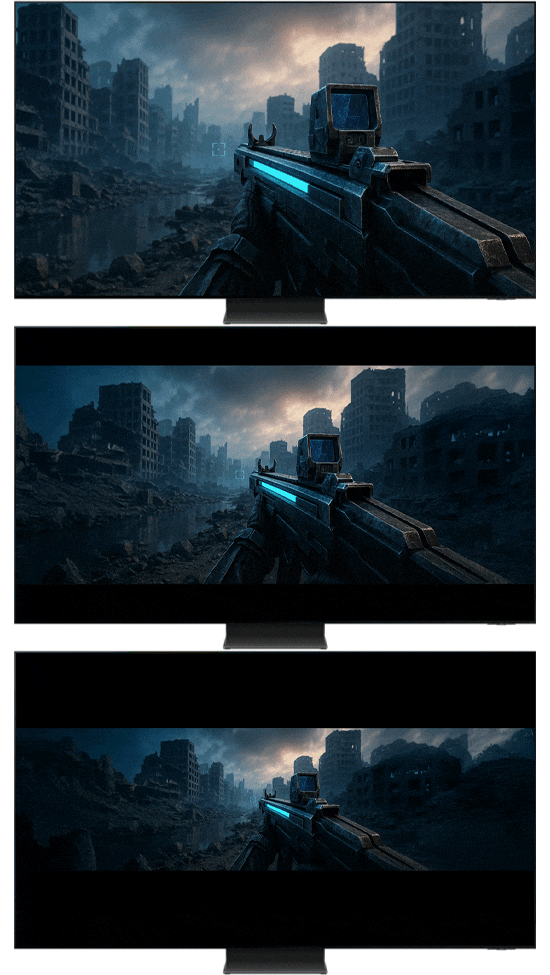
The Game Bar allows PC gamers to enjoy an expanded field of view using Ultrawide GameView.

How to enable Ultrawide GameView
- Press and hold the Play/Pause button on the remote to open the Game Bar.

- Change the Screen Ratio to 21:9 or 32:9.
- Set the PC’s resolution to the appropriate value. This only needs to be done once when switching to a 21:9 or 32:9 screen ratio for the first time.

PC resolution:- 21:9: 2560×1080 or 3840×1600 (60 Hz / 120 Hz / 144 Hz).
- 32:9: 3840×1080 (60 Hz / 120 Hz / 144 Hz)
- Launch a game that supports Ultrawide resolution.
- 120 Hz support may vary by model.
- 144 Hz is supported on the following 2026 models: QN990H, R95H, R85H, R80H, QN80H, M80H, and U9000H.
- The 32:9 screen ratio is supported only in PC games that support Ultrawide resolution.
How to adjust the screen position when using Ultrawide GameView
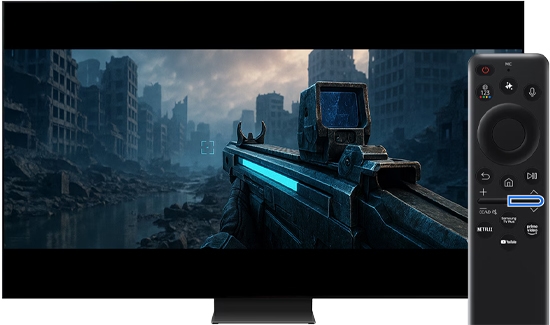
To move the screen position to the top, center, or bottom while using Ultrawide GameView, press the Channel Up or Down button on the remote.

Troubleshoot screen aspect ratio issues
If Ultrawide GameView does not display correctly, review the following:
- Confirm that the game supports 21:9 or 32:9 resolution.
- Set the PC resolution to 21:9 (3840 × 1600 or 2560 × 1080) or 32:9 (3840 × 1080).
- Exit the game, enable Ultrawide GameView in the Game Bar, and relaunch the game.
- The screen ratio cannot be changed while a game is running.
- Some games require manual screen ratio adjustments within in-game settings.
- Use the Channel Up/Down buttons to reposition the screen.
How to use the Minimap Zoom feature
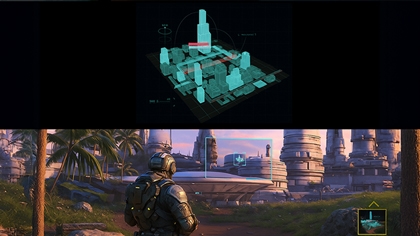
Minimap Zoom enlarges and repositions the in-game Minimap for easier navigation.

Supported resolutions:
- 16:9: 3840 × 2160 (60 Hz / 120 Hz)
- 21:9: 3840 × 1600, 2560 × 1080 (60 Hz / 120 Hz)
- 32:9: 3840 × 1080 (60 Hz / 120 Hz)
- The refresh rate may vary by model.
- Minimap Zoom in 21:9 and 32:9 is only supported when a PC is connected to the Samsung Smart TV and used as a signal source.
- Some models support Minimap Zoom only when the screen ratio is set to 21:9 or 32:9.
Follow the steps below to use the Minimap Zoom:
- Open the Game Bar using the Play/Pause button on the remote control.
- Select Minimap Zoom and choose a location:
- Left or right for 16:9
- Top or bottom for 21:9 or 32:9
- Reposition the Minimap Zoom using the 4-way directional button on the remote. The Minimap Auto Detection feature also analyzes the game screen and automatically zooms in on the Minimap’s location.

- Press Select to resize the zoom area.

Use the 2024 Game Bar

To access the Game Bar, ensure Game Mode is turned on. Press and hold the Home button on the TV's remote, select All Settings, then select Connection, and then select Game Mode Settings. Ensure Game Mode is set to On or Auto.
To open the Game Bar, press and hold the Play/Pause button on your TV’s remote. In addition to the 2023 Game Bar features (please refer to the next section in this article), the following features are available on the 2024 Game Bar:
- AI Auto Game mode: Recognizes the genre and automatically optimizes the picture and sound quality accordingly. This includes text and setting recognition.
- Minimap Auto Detection: Automatically locates the Minimap and zooms in on it, so there’s no need to manually locate it.
- Light Sync app: Easily control the lighting during a game using the Light Sync and Hue sync icons.
Use the 2023 Game Bar

To access the Game Bar, ensure Game Mode is turned on. Press and hold the Home button on the TV's remote, select All Settings, then select Connection, and then select Game Mode Settings. Ensure Game Mode is set to On or Auto.
To open the Game Bar, press and hold the Play/Pause button on your TV’s remote. The features available on the 2023 Game Bar include:
- Minimap Sharing: Simultaneously play your game and watch a walkthrough.
- Virtual Aim Point: Assist your aiming in FPS games with virtual aiming on the screen.
- Input Lag: Adjust the Input Lag status for optimal gameplay. Selecting 'Fastest' will disable Game Motion Plus mode.
- Game Picture Mode: Tailor the Game Picture Mode to the genre of the current game. For FPS games, for example, you can adjust the setting accordingly. To further customize picture quality, select Custom.
- Ultrawide GameView (Screen Ratio): Adjust the screen ratio from the standard 16:9 to Ultrawide (21:9 or 32:9). This feature is available when the source is set to PC.
- Minimap Zoom (New): Zoom in on the Minimap or any desired area of the screen, with adjustable zoom rates. This feature is accessible with aspect ratios of 16:9, 21:9, or 32:9.
- Sound Output: Select your preferred sound output device (such as a TV speaker, soundbar, or Bluetooth headset).
- Help Guide (New): Access detailed instructions on using each menu item.
- Game Mode Settings: Directly access the Game Mode Settings menu.
- Current Status Display: Adjust various display settings to achieve your desired gaming experience. This consolidates the display settings that were listed separately in previous models, including FPS (displaying frames per second in real time, which varies if VRR is active), HDR (indicating when an HDR game is running), and VRR (showing the variable refresh rate).
Last Update Date: October 8.2026